 Live Chat
  Connect to a Tech
Small medical and dental practices rely on technology every day, from scheduling appointments and accessing patient records to processing payments, printing forms, and communicating with patients.
When that technology works, the day runs more smoothly. When it doesn’t, the entire practice can feel it. A slow computer, printer issue, Wi-Fi problem, suspicious email, or outdated system can quickly disrupt patient care and create security concerns.
That’s why medical and dental practices need more than basic IT troubleshooting. These offices also manage protected health information, specialized software, connected devices, backups, user access, and cybersecurity expectations.
This checklist can help small medical and dental practices review their technology, spot potential gaps, and decide where better support may be needed.
Why IT Planning Matters for Small Practices
Small practices often have many of the same technology needs as larger healthcare organizations, but without a full internal IT department.
Your team still needs secure access to patient records, dependable internet, working devices, protected email, reliable backups, and quick support when something goes wrong. Without a clear IT plan, small issues can pile up quickly. Updates get missed, backups go untested, and everyday systems become harder to manage.
A proactive approach helps bring structure to your technology and keeps your practice better prepared.
1. Protect Patient Data and Control Access
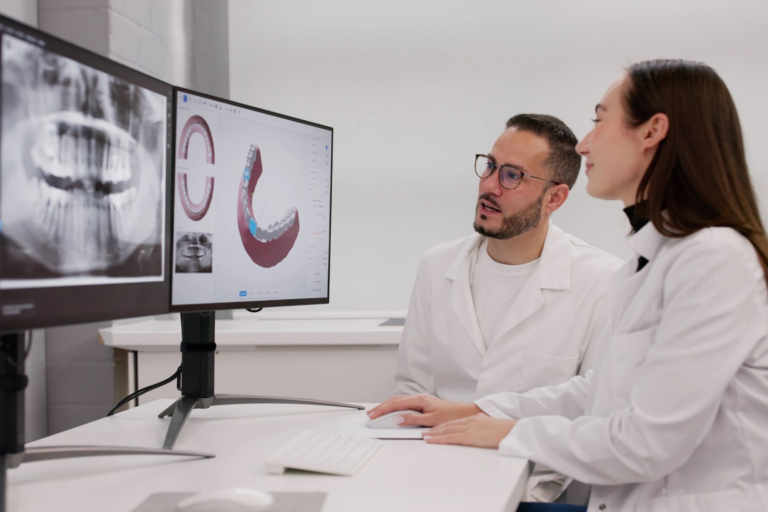
Healthcare practices handle sensitive information every day, including patient records, billing details, insurance information, imaging files, and internal communications.
Each employee should have their own login, with access based on their role. Shared logins may feel convenient, but they make it harder to track activity and increase security risk.
Multi-factor authentication should also be used whenever possible, especially for email, remote access, Microsoft 365, cloud-based software, and administrative accounts. When someone leaves or changes roles, access should be updated right away.
2. Keep Devices and Software Updated
Outdated systems are one of the most common weak points in a business technology environment. Updates often include security patches that help protect against known threats.
Workstations, servers, operating systems, browsers, antivirus tools, firmware, and business applications all need a clear update process. This is especially important for devices connected to patient records, billing systems, imaging tools, or other critical software.
Updates should be managed carefully so they don’t interrupt patient care, but they shouldn’t be ignored.
3. Back Up Critical Data
Outdated systems are one of the most common weak points in a business technology environment. Updates often include security patches that help protect against known threats.
Workstations, servers, operating systems, browsers, antivirus tools, firmware, and business applications all need a clear update process. This is especially important for devices connected to patient records, billing systems, imaging tools, or other critical software.
Updates should be managed carefully so they don’t interrupt patient care, but they shouldn’t be ignored.
4. Secure Email and Train Staff
Email is one of the most common ways cyber threats reach businesses. Phishing emails, fake invoices, malicious attachments, and credential theft attempts can all put your practice at risk.
Email security tools can help filter threats before they reach inboxes. Staff should also know how to spot suspicious messages, avoid unknown links, and report anything unusual.
Short, practical reminders can help reduce the chance of a small mistake becoming a larger issue.

5. Review Network Security and Connected Devices
Your network connects many parts of the practice, including computers, printers, phones, Wi-Fi, imaging equipment, payment systems, and other connected devices.
Firewall protection, Wi-Fi security, guest network access, and device segmentation should all be reviewed. Guest Wi-Fi should be separate from the main business network.
Printers, scanners, and imaging systems should also be included in your technology inventory. Default passwords should be changed, access should be limited, and older devices should be reviewed.
6. Create an Onboarding and Offboarding Process
Onboarding and offboarding are easy to overlook, but they’re important parts of IT security for medical and dental practices.
When a new employee starts, they should receive the right accounts, permissions, devices, and security expectations. When an employee leaves, access should be removed quickly from email, software platforms, shared drives, remote access tools, and any other systems they used.
A simple checklist can help avoid missed steps and reduce security risks.
7. Document Your Technology Environment
Many small practices rely on one or two people who “just know” how everything is set up. That may work for a while, but it creates problems when something breaks, someone is unavailable, or the practice needs to make a change.
IT documentation should include software platforms, device inventory, network equipment, internet provider information, backup details, vendor contacts, licensing information, support procedures, and administrative account ownership.
Good documentation helps your practice respond faster when issues come up and makes future planning easier.

8. Have a Downtime Plan
Even with strong IT support, issues can still happen. Internet outages, software problems, server failures, power issues, or vendor disruptions can all affect the practice.
Your team should know what to do if key systems go down. That may include backup workflows for scheduling, accessing critical patient information, communicating with patients, documenting services, and continuing basic operations until systems are restored.
A downtime plan helps reduce confusion and keeps the practice moving when technology isn’t working the way it should.
Make IT Easier to Manage for Your Practice
In a busy medical or dental office, technology gets noticed most when it slows the day down. A frozen workstation, printer issue, system access problem, or cybersecurity concern can quickly shift the focus from patient care to troubleshooting.
If managing all of this feels like a lot to keep track of, Workplace by Direct can help. Our team supports small medical and dental practices with responsive IT support, cybersecurity services, managed printing, and physical security solutions.